
Smart Printer: Print Documents
Rhythmix OUTools
3.92.28K Reviews
- Version
- 1.5.0
- Installs
- 10.00M
- Age Rating
- Everyone
Screenshots
Our Review of Smart Printer: Print Documents
 Analysis by Appyee
I judge a phone-printing app by a practical question: can it get a file from the place I already keep it to the printer I already own, without making a quick task feel like a setup project? Smart Printer: Print Documents is aimed at that everyday gap between finding a document on a phone and needing a paper copy. I’d consider it when I print occasionally and want a mobile route, rather than treating my phone as a replacement for every printer tool.
Choose it for your printing routine, not just the feature list
Before installing any printing app, I’d check how often I print, what kinds of files I handle, and whether my printer is already straightforward to use from my phone. If the built-in print option on your device reliably finds your printer and handles your documents, another app may not improve much. If you regularly search email, cloud storage, and local files for something to print, a dedicated app can be worthwhile when it brings those steps together.
That distinction matters because mobile printing can fail for reasons an app cannot fix: a printer may be offline, the phone and printer may not be on a usable network, or a document may not render as expected. I’d think of this as a tool for making a familiar printer easier to reach, not as a guarantee that every printer or file will behave identically. The best fit is someone who values a convenient phone-to-printer workflow and is willing to check compatibility before relying on it for urgent paperwork.
What makes it worth considering
It’s a tools app from Albert Gerassimov, and it has an average rating of 4.0 from around 117,000 ratings, with more than 5 million installs. Those figures suggest that plenty of people have tried it, but they don’t tell me whether it will suit a particular printer or household. I’d still test it with an ordinary, non-urgent file before depending on it for something important.
The appeal is the possibility of handling a print job where the file already lives, rather than moving it to a computer first. That can save a few steps when I need a form, a work page, or a photo on paper. It is free to install, rated Everyone, and currently version 1.3.4; in-app purchases range from $3.99 to $49.99 per item. I’d explore the basic workflow first and only consider a purchase if I had a specific need that the free experience did not cover.
A more useful way to test it
My first test would be a short document with simple formatting. I’d confirm that the printer appears, check the preview if available, and print a single copy before sending a longer file. That small check helps catch problems such as an unexpected page break or a layout that looks different on paper. It also separates a connection issue from a document-format issue, which makes troubleshooting less frustrating.
For a document with sensitive details, I’d be deliberate about where it came from and which printer I select. A phone can make it easy to choose a file quickly, but that convenience also makes it worth checking the filename and destination before printing. I would not send private paperwork to a shared printer unless I was ready to collect it promptly. This is a sensible habit with any mobile-printing method, not a special safeguard I would assume an app can replace.
A useful everyday example is receiving a permission form by email while getting ready to leave home. Instead of forwarding it to a computer, I could try opening it on my phone, selecting the printer, and printing one copy. If the preview looks cramped or the printer is unavailable, I still have time to use another route. The app is most helpful in that kind of low-pressure moment, when saving a few steps matters but a brief check is easy.
How it compares with familiar alternatives
The usual alternative is the print option already built into a phone or the printer maker’s own app. A built-in route may be enough for someone who prints simple files and already has a stable connection. A manufacturer’s app may make more sense when a person wants printer-specific controls or already depends on that brand’s tools. I would compare those routes by trying the same small file on each, rather than assuming one is universally better.
A general-purpose printing app can be appealing if I want one place to start from different documents, but it adds another app to maintain and another workflow to learn. For occasional printing, that trade-off is worthwhile only if it makes finding and sending files easier in practice. For frequent office printing, complex layouts, or jobs that need careful color and page control, a computer-based workflow may offer more confidence. I would not choose a phone app as my only route for a high-stakes print job until I had tested the exact file and settings.
It also helps to separate convenience from capability. A phone is handy for selecting a file while away from a desk, but a larger screen can make it easier to inspect a long document or catch formatting details. If a printout is for a meeting or official submission, I’d review the file on a larger screen when possible and use the phone app for the last-mile task only after checking the result. That is a practical compromise, not a reason to avoid mobile printing altogether.
Costs, compatibility, and the changeover
There is little reason to move every printing habit at once. I’d keep my current method available, install the app, and try it with one routine document. If the connection and output are dependable, I could use it for quick jobs; if not, switching back is simple. This gradual approach is especially useful in a home where several people use the printer in different ways.
The app was released on May 1, 2024, and its minimum operating-system requirement is 10. Before installing, I’d check that my device meets that requirement and that I can access the printer from the network I plan to use. A successful test at home does not automatically mean the same setup will work elsewhere, such as on a guest network or in an office. When a job matters, I’d allow time to confirm the printer is available rather than assuming a saved workflow will always connect.
Pricing deserves a little attention even though the app is free to install. The listed in-app purchase range is $3.99 to $49.99 per item, so I would avoid buying anything until I understood what it unlocks and knew I needed it. Occasional users may be perfectly content with the free path; people with more demanding requirements should check the purchase details carefully before treating a paid option as essential. A purchase makes sense only when it solves a recurring problem for you.
Who should look elsewhere
I would skip this app if my printer already works smoothly through the phone’s standard print controls and I have no trouble locating files. I’d also avoid making it my first choice for a workflow where exact layout, repeated batch printing, or specialized printer controls are essential unless I had confirmed those needs were met. In those cases, the printer’s own software or a desktop workflow may be a better match.
Someone who rarely prints may not benefit enough to justify learning another interface. On the other hand, a student printing occasional forms, a household member who needs paper copies of emailed documents, or a person who often handles files away from a computer may find the convenience useful. The dividing line is not technical expertise; it is whether the app removes a step you actually encounter.
I’d also keep an alternative ready for time-sensitive work. If a printer is disconnected, a document is unusually formatted, or the phone cannot locate the device, repeating the same attempt is rarely the best use of time. Opening the printer’s own app, using the built-in print menu, or moving to a computer can be the more sensible choice. A good mobile tool should make routine tasks easier, while a backup method keeps an exception from becoming a deadline problem.
My recommendation
My overall view is that Smart Printer: Print Documents is worth trying if you want a mobile route to everyday printing and are prepared to test it with your own printer. I would start with a simple file, inspect the result, and keep the current method as a backup until the new routine proves reliable. That gives you a fair sense of whether the convenience is real in your home rather than just appealing in theory.
I wouldn’t recommend paying for an upgrade before identifying a feature you genuinely need, and I wouldn’t rely on any phone-printing setup for a critical job without a test run. But for an ordinary document that needs to move from a phone to paper, the idea is useful and the entry cost is low. If your built-in option already does the job, stay with it; if finding and sending files is the part that slows you down, this app is a reasonable one to try.
Let me tell you about this nifty app I stumbled upon recently: Smart Printer: Print Documents. If you're like me, juggling between devices and trying to get documents printed seamlessly, this app might just be the game-changer you've been waiting for.
Getting Started with Smart Printer
Diving into the app is as easy as pie. Once you've got it installed, the setup is pretty intuitive. You simply connect your printer, and bam, you're ready to go. The first thing I noticed was the clean interface. It's not cluttered, and everything is exactly where you'd expect it to be.
Features That Stand Out
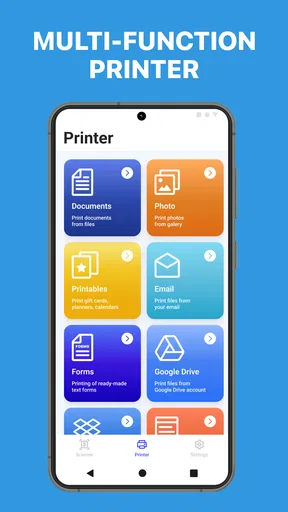
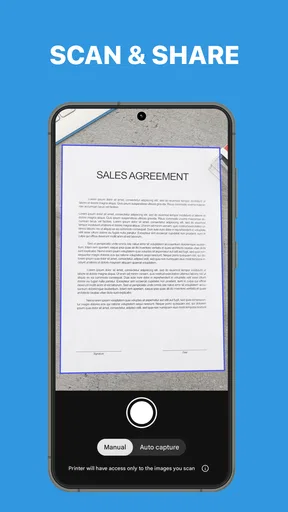
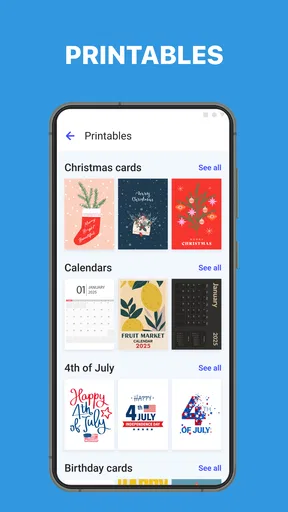
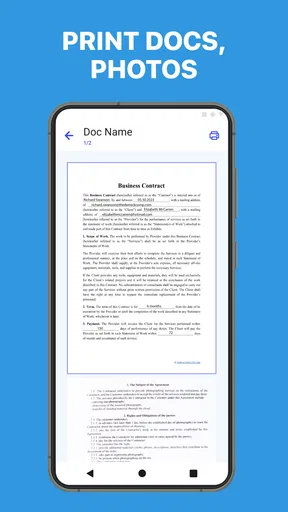
One of the key features that I found really useful is the ability to print directly from your phone. Whether it's a PDF, a Word document, or even a photo, Smart Printer: Print Documents handles it all with ease. No need to transfer files to your computer first. Just open the app, select your document, and hit print. It’s that simple!
Another cool feature is the ability to adjust print settings right from the app. You can choose the number of copies, paper size, and even the print quality. It's like having a mini print studio in your pocket. And speaking of pockets, this app supports printing over Wi-Fi, so you can print even when your printer is in another room.
Seamless Integration
If you're an Android or iOS user, you'll appreciate how well this app integrates with your device. Whether you're pulling documents from Google Drive, Dropbox, or even from your email, Smart Printer: Print Documents makes it a breeze to access and print your files.
For those concerned about security, the app ensures that your documents are transmitted securely. It’s always good to know your files are safe when printing sensitive information.
User Experience
Using the app feels quite intuitive. The developers clearly focused on user experience, making sure that even those who aren't tech-savvy can get their documents printed without a hitch. The app is responsive, and I didn't encounter any lagging, which is always a plus.
One thing to note is that the app does offer in-app purchases. While the basic features are free, some advanced functionalities might require a small fee. It's something to consider if you have more demanding printing needs.
Why You Should Give It a Try
If you're on the fence about downloading another app, let me share why Smart Printer: Print Documents might be worth your time. First off, the convenience factor is unbeatable. No more rushing to a computer just to print something last minute. Secondly, the app is frequently updated, which means the developers are committed to improving the user experience.
In conclusion, if you’re looking for a reliable, easy-to-use printing app for your mobile device, this one ticks all the right boxes. It's efficient, user-friendly, and makes printing from your phone a hassle-free experience. So go ahead, give it a spin, and see how it simplifies your printing tasks.
Verdict
Strengths of Smart Printer: Print Documents
- Easy document setup and printing.
- Supports a wide range of file formats.
- User-friendly interface design.
- Fast connection to printers via Wi-Fi.
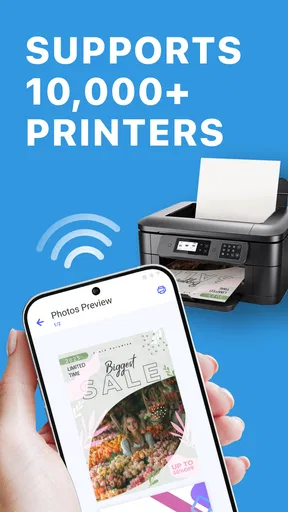
- Compatible with major printer brands.
Limitations of Smart Printer: Print Documents
- Limited cloud storage integration.
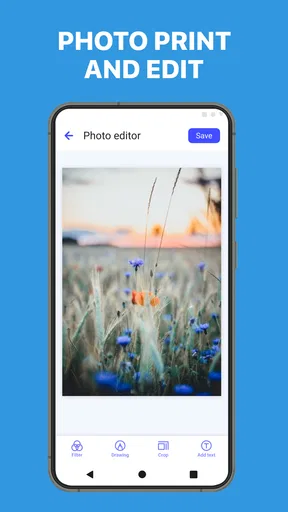
- No advanced photo editing tools.
- In-app purchases can be pricey.
- Occasional connectivity issues.
- Requires frequent updates.
Other Releases by Rhythmix OU
View All
Voice Recorder & Transcriber
Productivity4.5
Similar Picks in This Category
View All
Google LLC4.0

Gboard - the Google Keyboard
Google LLC4.5

Google Play services
Google LLC4.3

Google Play Store
Google LLC4.9

Files by Google
Google LLC4.5

SHAREit: Transfer, Share Files
Smart Media4U Technology Pte.Ltd.4.3
Frequently Asked Questions
What types of documents can I print with Smart Printer: Print Documents?
Smart Printer: Print Documents supports a wide range of document types including PDFs, Word documents, Excel spreadsheets, and images. This versatility makes it easy to print various file formats directly from your mobile device without the need for conversion or additional software.
Is Smart Printer: Print Documents compatible with all printers?
The app is compatible with most Wi-Fi enabled printers including popular brands such as HP, Canon, Epson, and Brother. However, it’s essential to ensure your printer supports wireless connectivity. You may want to check the app’s compatibility list before downloading to confirm support for your specific printer model.
Does the app offer any editing features before printing?
Yes, Smart Printer: Print Documents includes basic editing features that allow you to adjust document layout, select specific pages, and choose print quality. These features provide flexibility and convenience, ensuring your documents are printed exactly as needed without requiring additional editing software.
How secure is my data when using Smart Printer: Print Documents?
Security is a priority with Smart Printer: Print Documents. The app uses encryption to protect your data during transmission to the printer. It also doesn’t store any of your documents on external servers, ensuring your sensitive information remains secure and private throughout the printing process.
Are there any subscription fees or in-app purchases required?
Smart Printer: Print Documents offers a free version with basic features. However, for advanced functionalities like priority support and additional editing tools, there may be in-app purchases or subscription options available. It’s advisable to review the pricing structure in the app store description to understand what features are included for free.
